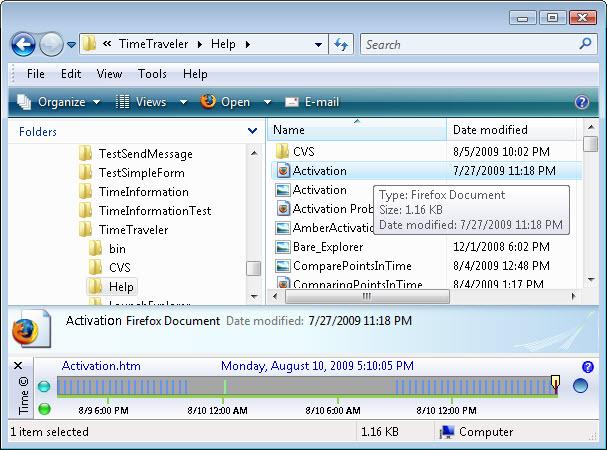
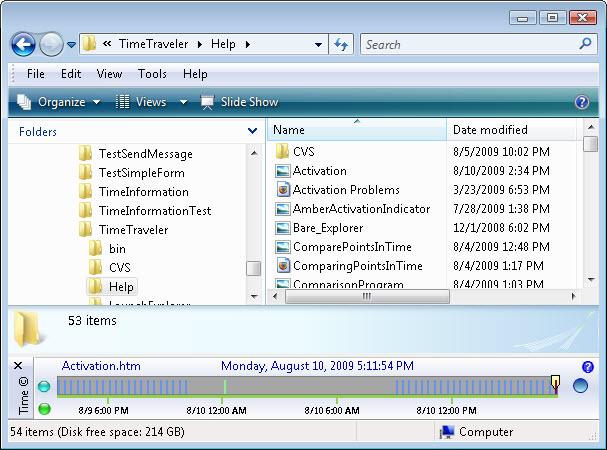
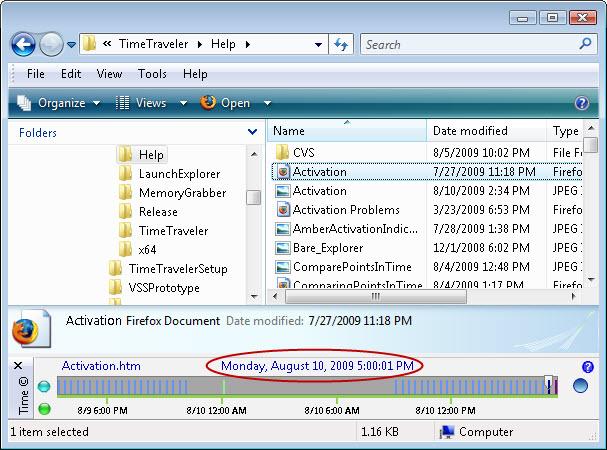
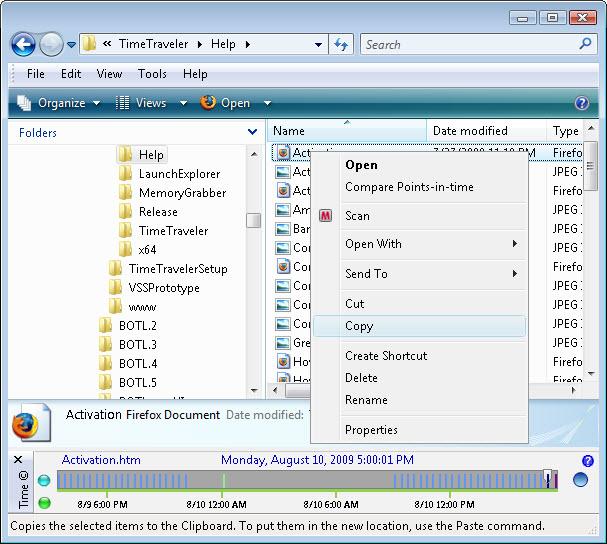
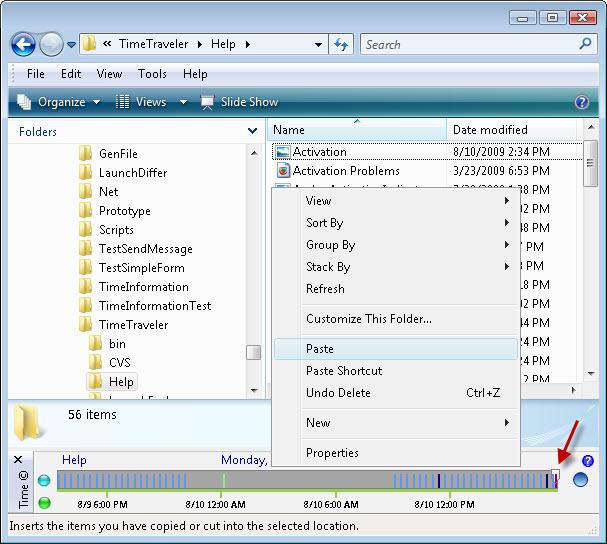
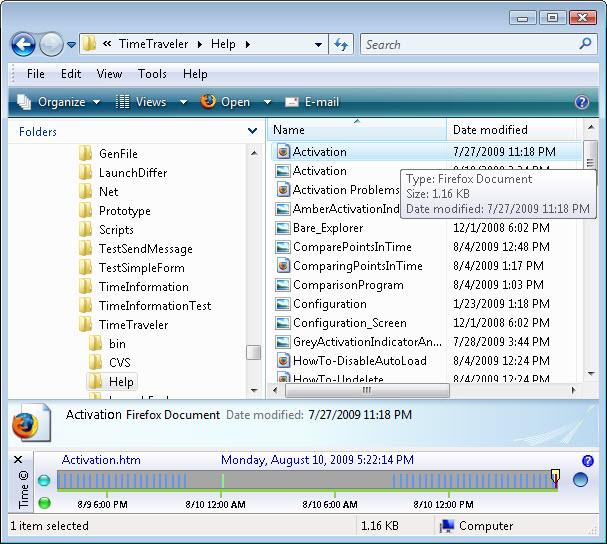
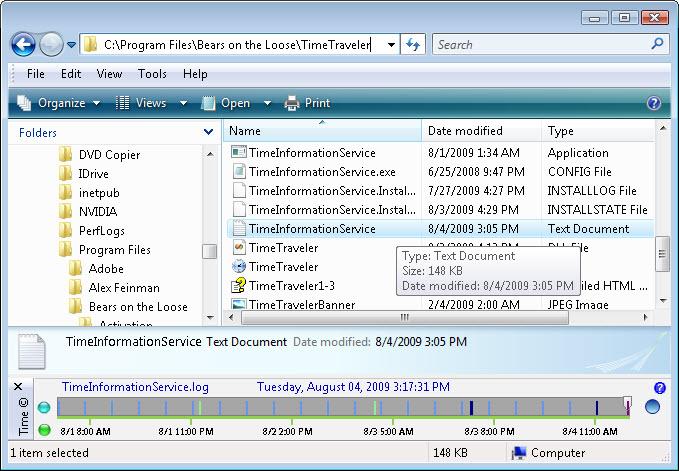
If you have accidentally deleted a file, you can easily recover it with TimeTravelerTM. Open Windows Explorer. TimeTravelerTM is initially set to 'Now' therefore Explorer shows the current versions of your files and folders. Navigate to the folder that contained your deleted file. Now, move the time cursor to a point-in-time before you deleted your file. Moving the time cursor to a prior point-in-time simply mounts a snapshot of the volume at the selected time and change the Explorer address bar to point to the selected folder from that snapshot or point-in-time. It is important to note that the files and folders from prior points-in-time cannot be modified. They can only be read. To restore the file, copy the file using either right-click and Copy from the context menu or Control-C then move the time cursor back to 'Now' and paste the file in the current folder using either right-click and Paste from the context menu or Control-V. This works for any file or folder.
Figure 1: Before deleting Activation.htm
Figure 2: After deleting Activation.html
Figure 3: At the previous point-in-time the file is still there
Figure 4: Right-click on the deleted file at the prior point-in-time and select 'Copy'
Figure 5: Move the time cursor back to the current time, right-click anywhere in the list view and select 'Paste'
Figure 6: Activation.htm has been restored. It has the same 'Date modified' it had in Figure 1.
Stop loading TimeTraveler each time Windows Explorer opens
The default behavior is to load TimeTravelerTM each time Windows Explorer opens. If you want to load TimeTravelerTM only when you need it you can disable the auto-load feature by pressing the turquoise button, left to the timeline. The button will become gray indicating that the feature is disabled. The feature can be re-enabled by pressing the button again. Use Control-T to load and unload TimeTraveler.
Figure 1: Disable Auto-Load
Upgrade TimeTraveler to a newer version
To upgrade TimeTravelerTM uninstall the current version and install the new version. You do not need to worry about your product key. It will be remembered and you upgraded TimeTravelerTM will still be activated.
Run TimeTraveler on Windows Server 2008
TimeTravelerTM is fully functional on Windows Server 2008 but it requires the Desktop Experience feature, the Themes service and the Vista theme in order to correctly display its Windows Forms.
To install Desktop Experience in Windows Server 2008
Click Start, click Control Panel, and then double-click Programs and Features.
Click Turn Windows Features on or off. Administrator permission required If you are prompted for an administrator password or confirmation, type the password or provide confirmation.
In the Features Summary section, click Add Features.
Select the Desktop Experience check box, and then click Next.
Click Install. You might be prompted to restart your computer.
To enable the Themes service in Windows Server 2008
Click Start, point to Administrative Tools, and then click Services. Administrator permission required If you are prompted for an administrator password or confirmation, type the password or provide confirmation.
Double-click Themes.
In the Startup type list, select Automatic, and then click Apply.
Under Service status, click Start, and then click OK.
To select the Windows Vista theme
Right-click an open area of the desktop, and then click Personalize.
Click Themes.
In the Theme list, click Windows Vista, and then click OK.
Move TimeTraveler license to another machineMove TimeTraveler license to another machine
On the machine where it is installed, press the activation button to bring
up the activation form.
Note your email address and product key.
Press the deactivate button. An internet connection is required for this
operation to succeed.
On the new machine, install TimeTraveler.
Press the activation button to bring up the activation form.
Enter your email and product key. Press the activate button. An internet
connection is required for this operation to succeed.
TroubleShooting TimeTraveler
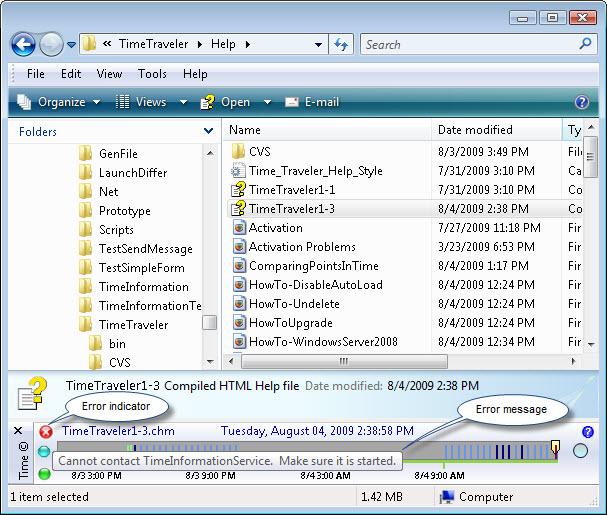
The first indication that something is wrong with TimeTraveler is the status
indicator. See the red indicator in Figure 1. In this case, we have stopped
TimeInformationService, the component of TimeTraveler that interacts with the
system, simply to demonstrate how the error reporting works. When you
mouse-hover the indicator an error message will be displayed like in the Figure
1.
Figure 1: TimeTraveler reporting an error
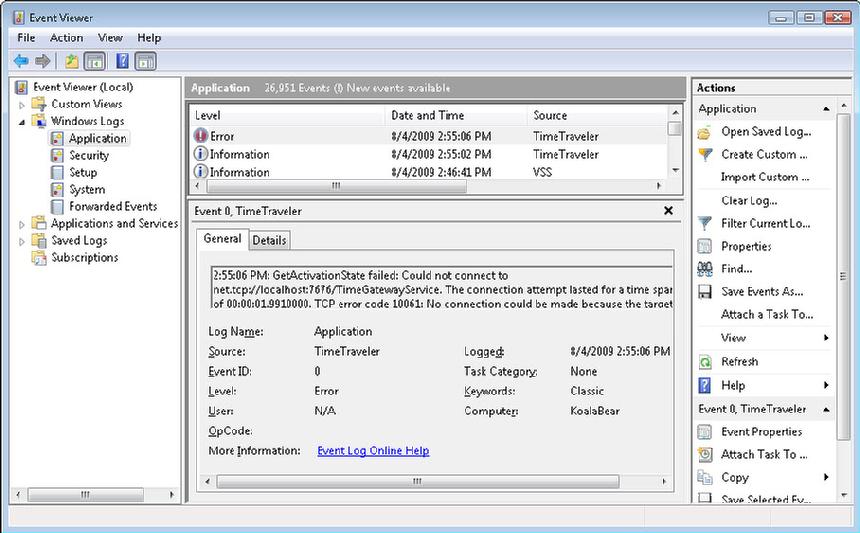
On a second level, TimeTraveler and TimeInformationService generate Windows
events. They are accessible from the Windows Event Viewer which you can bring
up with: Start -> Control Panel -> Administrative Tools -> Event
Viewer. It is shown in Figure 2. TimeTraveler and TimeInformationService log
under Windows Logs/Application.
Figure 2: Windows Event Viewer showing an error reported by TimeTraveler
On a third level, TimeInformationService maintains a log file located in
TimeTraveler installation directory.